
How to hide home theater wires on racks effectively — discover the simple 7-step method to organize, conceal, and manage cables like a professional.
If you’ve ever looked behind your entertainment setup and seen a tangled mess of cables, you’re not alone. Many home theater owners struggle with messy wiring, especially when using racks to house multiple devices. The good news? Learning how to hide home theater wires on racks doesn’t have to be complicated.
With the right strategy, tools, and a bit of planning, you can transform a chaotic cable situation into a clean, professional-looking setup. This guide walks you through a Simple 7-Step process that not only improves appearance but also boosts safety, airflow, and ease of maintenance.
Let’s break it down step by step.
Why Cable Management Matters in Home Theater Setups
Before diving into techniques, it’s important to understand why proper cable management is essential.
Safety and Aesthetic Benefits
Organizing your wires helps:
- Prevent tripping hazards
- Reduce fire risks from tangled cables
- Improve airflow around devices
- Create a clean, modern look
A neat setup instantly makes your home theater feel more premium.
Common Problems With Visible Wires
Without proper management, you may face:
- Cable tangling
- Difficulty troubleshooting
- Overheating equipment
- Dust accumulation
This is why mastering how to hide home theater wires on racks is more than just cosmetic — it’s practical.
Understanding Different Types of Home Theater Wires
Knowing your cables helps you organize them better.
Power Cables vs Signal Cables
- Power cables deliver electricity
- Signal cables (HDMI, audio, Ethernet) transmit data
Important tip: Always separate power and signal cables to avoid interference.
HDMI, Speaker, and Ethernet Cables
Common wires include:
- HDMI cables (video/audio transmission)
- Speaker wires (audio output)
- Ethernet cables (internet connection)
Each type should be routed carefully for optimal performance.
Step 1: Planning Your Cable Layout Before Setup
Planning is half the job.
Mapping Your Equipment Rack
Start by:
- Listing all devices
- Identifying input/output ports
- Determining cable paths
Sketching a simple layout can save hours later.
Measuring Cable Lengths
Avoid:
- Cables that are too short
- Excessively long cables create clutter
Choose the correct length for a clean result.
Step 2: Using Cable Sleeves and Wire Covers
Cable sleeves are one of the easiest solutions.
Flexible Sleeves
Benefits:
- Bundle multiple cables together
- Easy to install and remove
- Flexible and neat
Rigid Cable Channels
Best for:
- Permanent setups
- Straight cable runs
- Wall or rack edges
They provide a structured and polished appearance.
Step 3: Installing Cable Management Panels for Racks
Professional racks often include cable organizers.
Vertical vs Horizontal Panels
- Vertical panels manage long cable runs
- Horizontal panels keep connections neat at each level
Rack Mount Cable Organizers
These tools:
- Hold cables in place
- Prevent tangling
- Improve airflow
They’re essential for serious setups.
Step 4: Labeling and Organizing Cables Properly
Organization goes beyond hiding.
Color Coding Techniques
Use different colors for:
- Audio
- Video
- Power
This makes troubleshooting faster.
Cable Tags and Labels
Label both ends of each cable.
This saves time when upgrading or fixing issues.
Step 5: Routing Cables Behind Walls or Furniture
Hidden routing creates a clean look.
In-Wall Cable Management
Pros:
- Completely hidden wires
- Professional appearance
Cons:
- Requires installation tools
- Must follow safety codes
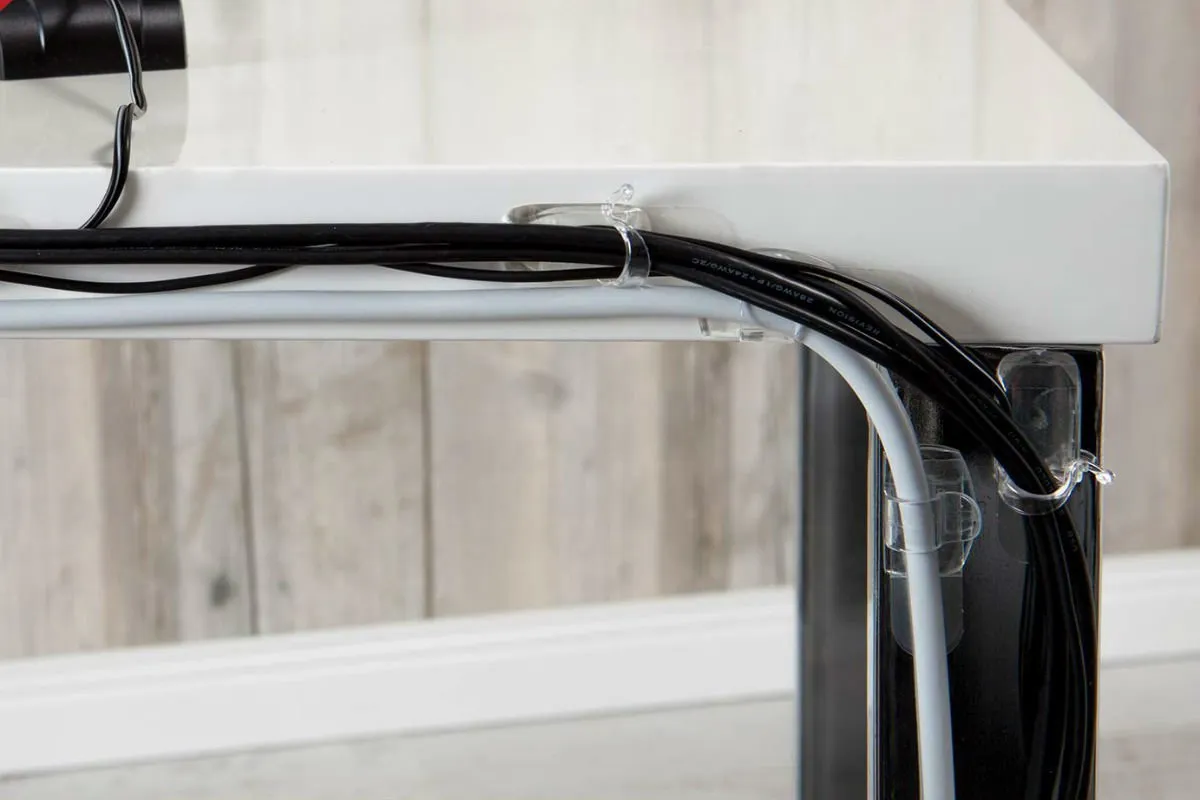
Surface Routing Techniques
Use:
- Baseboard channels
- Furniture edges
- Wall clips
These offer a simpler alternative.
Step 6: Using Cable Ties, Clips, and Velcro Straps
These small tools make a big difference.
Choosing the Right Fasteners
- Velcro straps (reusable and flexible)
- Zip ties (secure but permanent)
- Adhesive clips (for routing)
Avoiding Over-Tightening
Tight cables can:
- Damage insulation
- Reduce signal quality
- Cause overheating
Keep cables snug but not compressed.
Step 7: Maintaining a Clean and Tangle-Free Setup
Cable management isn’t a one-time task.
Routine Cable Checks
Every few months:
- Inspect connections
- Remove unused cables
- Adjust routing if needed
Upgrading and Reorganizing
As you add devices, revisit your layout.
This keeps your system efficient and clean.
Enhancing Your Rack Setup for a Professional Look
Want that “wow” factor?
Lighting and Rack Aesthetics
Consider:
- LED strip lighting
- Glass rack doors
- Hidden compartments
A clean rack with subtle lighting looks incredible.
Cost Comparison of Cable Management Solutions
Budget vs Premium Options
| Solution | Cost | Use Case |
|---|---|---|
| Cable ties | Low | Basic setups |
| Sleeves | Medium | Home use |
| Rack panels | Higher | Professional setups |
Investing a little goes a long way.
🟦 FAQs
1. What is the easiest way to hide home theater wires on racks?
Using cable sleeves and Velcro straps is the simplest method.
2. Can I run cables inside walls safely?
Yes, but use in-wall rated cables and follow safety guidelines.
3. How do I prevent cable tangling?
Bundle cables, label them, and use organizers.
4. Should power and signal cables be separated?
Yes, to prevent interference.
5. Are wireless systems better for reducing wires?
They reduce clutter but may compromise performance.
6. How often should I reorganize cables?
Every 3–6 months or when adding new devices.
Conclusion
Learning how to hide home theater wires on racks can completely transform your entertainment setup. With proper planning, the right tools, and the Simple 7-Step approach, you can achieve a clean, organized, and professional-looking system. Not only will your space look better, but your home theater will also function more efficiently and safely.